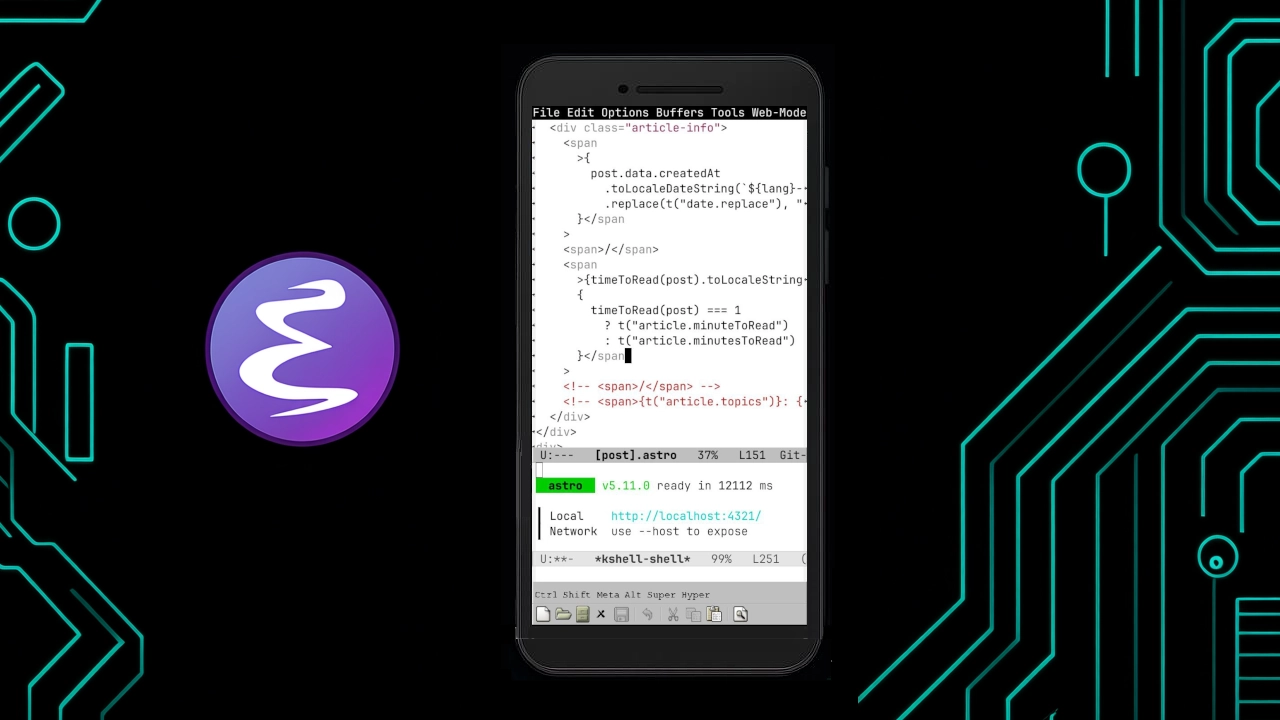
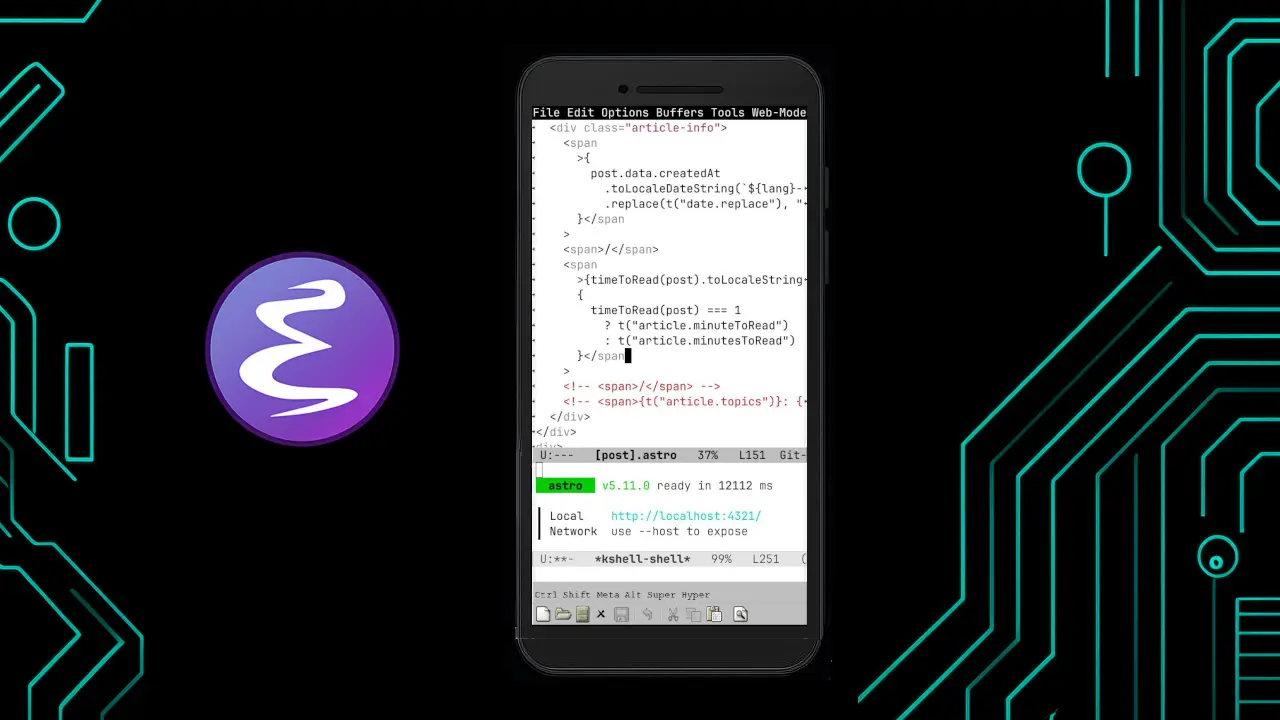
How to Install and Set Up Emacs on Android
Emacs is a nice editor for coding on Android. It is cross-platform and officially supported. So, you get the advantage of using the same code editor on all your devices without extra hacks (unlike VSCode). If you want to code without a computer, this is the best choice. I know of no other code editor for Android which is also supported on desktops and as powerful as Emacs is. You can even use packages like git, python etc. in it via Termux. The publisher of Emacs describes it as follows:
Emacs is the advanced, extensible, customizable, self-documenting editor
So, its main features are:
-
Advanced: Emacs can do more than just basic text editing - it can indent automatically, show multiple files, edit remote files, and much more.
-
Self-documenting: From within the editor itself, you can use help commands to find out what any command does, or to find all commands related to a given topic.
-
Customizable: You can easily change the behaviour of its commands.
-
Extensible: Besides changing commands, you can also create new commands with the Emacs Lisp programming language.
Actually, in Emacs, you can do much more than just code editing. You can browse the web, read email or news, perform calculations, make plans and more. You might end up uninstalling many other apps on your phone after starting to use Emacs! By programming with Emacs Lisp or installing packages made by others, you can make it do many things that a traditional editor can’t.
Alright, let’s dive in to installing Emacs on Android. There are three methods to install it on Android. Among them, I recommend installing Emacs with Termux support.
Installation
General Installation
This is the easiest and most straightforward method. You simply download the app from official source and install it. But, you wouldn’t get additional packages such as git, ssh, python etc. For simple code editing tasks, you can go with this method:
-
Visit your nearest GNU mirror or the main GNU FTP server.
-
Download a package according to the CPU architecture and Android version of your phone.
-
Now, install the
.apkfile. Grant permission to install from unknown source if asked.
Note: There is also another version available on F-Droid. But it’s older from the official one. And it lacks bug fixes and new features. So, you’re better off with the official APK.
Installation with Termux support
You can also install Emacs with Termux support. Termux is a terminal emulator which lets you use a Linux environment on Android without rooting. So you can get an awesome coding environment thanks to Linux packages ported for Android in Termux repository. This gives Emacs access to crucial tools such as git, clang, python, fish etc. I recommend this method because it enhances your coding experience by interfacing with Termux. For this to work, you need a Termux package signed with the same key as Emacs. The Emacs developers already provide such packages. Here’s the complete process:
-
Remove any existing copy of Termux and Emacs from your phone.
-
Install Termux from this source first.
-
Then install Emacs from your nearest mirror or the FTP server. You must install the package from
termux/dir. -
Now, run the following in Termux:
$ pkg update && pkg upgradeConfirm each of the inquiries accordingly.
- After all the packages are installed and updated, open Emacs and add the following code into
~/.emacs.d/early-init.el(read more about Early Init File in Emacs manual):
(setenv "PATH" (format "%s:%s" "/data/data/com.termux/files/usr/bin" (getenv "PATH")))(push "/data/data/com.termux/files/usr/bin" exec-path)This will add the Termux binary path to Emacs’ exec-path exposing packages from Termux to it.
💡 You can make a symbolic link to Emacs home directory (
/data/data/org.gnu.emacs/files/) from Termux home directory (/data/data/com.termux/files/home) for better management of files and configurations between Emacs an Termux.
Now, restart Emacs. You should be able to access programs in Termux from Emacs now.
Note: Any future updates of Emacs or Termux (and plugins) must be signed with the same key. For Android packages downloaded from other sources, you must sign them with the key available at:
https://git.savannah.gnu.org/cgit/emacs.git/tree/java/emacs.keystore
Installing from Termux Repository
You can also install Emacs directly from the Termux repository. Then you can launch Emacs from inside Termux. Install it with the command:
pkg install emacsHowever, in my opinion, the official app is better. Because it runs as a native Android GUI program within the Android system and it has better support for Android. On the other hand, Emacs from Termux is not a separate Android app. Rather, it is a package of Termux.
Getting Started
💡 You can also check out my Emacs configuration. If you don’t have enough time to read the following, you can start using my barebones.el file as your Init File. The file contains the bare minimum configuration needed to use Emacs on Android. Be sure to read the comments and adjust the configs as you need. There are also useful configurations in other files of my configuration besides
barebones.el. So, I recommend looking at all the files there.
Keyboard Notation in Emacs
| Notation | Key Meaning |
|---|---|
ESC | ESCAPE |
M | META (ALT) |
C | CTRL (CONTROL) |
S | SHIFT |
SPC | SPACE |
RET | RETURN (ENTER) |
DEL | DELETE |
Example: C-s = CTRL-s, M-x = META-x, S-d = SHIFT-d, C-M-DEL = CTRL-META-DELETE, C-x C-z = CTRL-x CTRL-z
Customizing Emacs on Android
The best way to customize Emacs on Android is via the Easy Customization Interface. It can be accessed through the menu bar: Options > Customize Emacs. There are many options in that menu. You can start with Top-level Customization Group which is basically the home of Easy Customization Interface. There is also a search bar at the top of the interface for searching settings. You can also search using the All Settings Matching option.
Emacs can also be customized with an initialization file (or “init file” for short). Emacs searches for the init file using filenames ~/.emacs.el, ~/.emacs, or ~/.emacs.d/init.el in that order. You can write Emacs Lisp expressions in this file to configure Emacs. These expressions are function names followed by arguments and surrounded by parentheses. For example, to auto-save a file 5 seconds after you stop typing, you would change the value of auto-save-timeout variable with setq:
(setq auto-save-timeout 5)To display modifier bar, you would call the minor mode command modifier-bar-mode with argument 1:
(modifier-bar-mode 1)For more details about Init File syntax, refer to Emacs manual. Furthermore, if you need to run any command before the Init File loads, you can use the Early Init File, which we did earlier in the installation process.
Besides, you can run any command by typing M-x (or Edit > Execute command from menu bar). For example, if you type M-x customize and press Enter, the Top-level Emacs Customization Group will appear, because customize is the command for Easy Customization Interface. Additionally, you can find commands using tab completion.
Grant Storage Permissions to Emacs
Emacs by default has access to its app data directory (usually /data/data/org.gnu.emacs/files) which is used as its home directory. But, it also needs to access your internal storage (located at /sdcard) to open and edit files from there. For Android 11+:
-
Go to the Apps section in Settings.
-
Then, go to Special App Access option.
-
Find out Emacs in the app list and enable All files access for it there.
For Android versions lower than 11, you can allow storage permission from Permissions menu in App Info.
You can also grant Emacs access to storage provided by other apps (cloud storage apps for example). To do this, execute android-request-directory-access command. Then, choose the corresponding storage and your desired directory from the selection panel.
Set up GUI elements or bars
If you want to use Emacs on Android without a physical keyboard, GUI elements like menu bar and tool bar will be your best friends. So, enable all of them as you need from Customize. One very useful option for Android is the modifier bar beneath the tool bar of Emacs. It contains buttons for the modifier keys (e.g. CTRL, ALT, META etc.) understood by Emacs. You can enable it with modifier-bar-mode when tool-bar-mode is on. When you tap any of the modifier keys, Emacs will also display the on-screen keyboard and temporarily disable text conversion to let you use modifiers in a Text or Prog mode buffer. You can set tool-bar-position to bottom to get those keys near your fingers.
Always display on-screen keyboard
Emacs on Android hides on-screen keyboard in read-only buffers by default to save screen space. You can usually perform actions from the menu bar or tool bar what you would otherwise do with a keyboard. But, having the keyboard is still very useful. Turn on touch-screen-display-keyboard to always display the keyboard.
Enable support for keybinding-reliant packages
Some Emacs packages (e.g. Evil) that rely on globally reading raw key events / keybindings don’t work with Android’s on-screen keyboard. This is because Android input methods rely on Emacs’ text conversion style which lets it implement some features like auto-fill, electric-pair etc. If you use any package that can’t work because of this, disable text conversion globally with the variable overriding-text-conversion-style or disable it locally per buffer with text-conversion-style variable. However, I failed to use phonetic keyboard on Android (such as Borno Keyboard app) with this setting. So, you’d have to keep it in consideration. Emacs also has its own input methods for various languages. Check out if yours is available there with list-input-methods.
Terminal and Shell
You can use terminal and shell from within Emacs. For that, Emacs has the following commands:
-
Terminal:
termansi-term
-
Shell:
shelleshell
Terminals can take input directly from the keyboard, which allows for features like using up arrow to see previous commands. On the other hand, shell only takes input from the buffer, so it doesn’t have some of the terminals’ features. If you need special character support (like colored output), you must use ansi-term. Lastly, eshell is a command interpreter similar to shell but written in Emacs Lisp.
Opening files with Emacs
When you try to open a file on Android, it asks which app to use. To open files with Emacs, you need to enable the Emacs server. Run M-x server-start to start the server from inside Emacs. Running the server automatically at startup would be very convenient for you. To do that, simply add (server-start) to your initialization file.
Improve readability and editing experience
Enable visual-line-mode to edit lines based on their visual order, not logical order. Long lines when wrapped look like many lines though actually they are a single line. This mode changes simple editing commands to act on those visual lines and also enables word-wrap in the corresponding buffer. Thus it helps you read and edit better on Android. Enable it from Options > Line Wrapping in this Buffer > Word Wrap (Visual Line Mode). You can enable it for all buffers globally with global-visual-line-mode. You can also enable visual-wrap-prefix-mode to indent wrapped lines. You may also look into the following:
Configuring fonts
Emacs looks for fonts in ~/fonts directory in its home directory. You can set default font in Emacs with the set-frame-font function like so:
(set-frame-font "JetBrains Mono")You can also set fonts from the Faces group in Customize. There are various subgroups under that group for font faces used in different areas of Emacs. Start with the Basic Faces subgroup and customize others as necessary.
If your primary font does not support your local language, you need to add a language-specific font to the fontset. For example, you can use the following code in your Init File for Bangla language:
(set-fontset-font "fontset-default" nil "Noto Sans Bengali" nil 'prepend)According to this Elisp expression, Emacs will use the specified font Noto Sans Bengali for rendering Bangla language. This font is usually pre-installed on Android phones. You can check which fonts are available on your phone by installing fontconfig-utils in Termux. Simply run:
fc-listThis will list all the fonts installed on your Android system as well as inside Termux. So, this will also include fonts installed both system-wide and for the user in Termux. System-wide fonts are usually installed via Termux packages in $PREFIX/usr/share/fonts/ or fonts placed in $PREFIX/usr/local/share/fonts/. And, user fonts are in ~/.local/share/fonts in Termux home. So, you have to omit these from that list if you have fonts there.
Your phone may already have a lot of Noto fonts installed for various languages. However, if the font you want to use is not on your device, you can get the fonts from the internet and copy the files in ~/fonts/. But remember, only .ttf is supported at this moment. And, the fonts directory isn’t checked recursively. So, you have to place the fonts in the root of ~/fonts/.
Beyond Code Editing
As I mentioned earlier, you can do much more in Emacs than just code editing. You might think - a code editor’s job is coding, why do everything in it! However, while coding, it is annoying to leave the editor for related works such as contacting your clients/colleagues, planning your works or finding out related info from the internet. It breaks your concentration. And because of such feature, you can use similar keybindings for those tasks. This is especially convenient when those tasks are related to programming.
Emacs comes with built-in packages for various tasks, and you can install more. Here are some examples of what you can do with Emacs:
Task & Project Planning
You can use Org Mode to create structured documents and organize your tasks in Emacs. Org Mode is a writing tool and task planner for Emacs. This feature often comes up in discussions about Emacs. Org is essentially a markup language - you can call it an alternative to Markdown. But its syntax is simpler than Markdown. Although you can use Org files in other editors, Emacs offers some smart features for it. For example, you can press TAB on a heading line in an Org file to hide the text and subheadings under it. Pressing TAB repeatedly will reveal the subheadings step by step. Pressing S-TAB anywhere in the Org Mode buffer will cycle through visibility levels of the headings for the entire buffer. Org files can also include source code blocks and therefore you can use it for technical documentation. Read the relevant manual to learn more about Org Mode.
Web Browsing
Emacs has a simple HTML-only web browser. It is called EWW. To use it, run M-x eww. It’s great for quickly looking up information or reading documentation while coding. Websites often distract us with various elements - the browser’s simple interface saves you from that. It doesn’t support CSS or JavaScript.
Email & News Reading
You can read email and news in Emacs using Gnus (M-x gnus). Initially, Gnus used to be a Usenet-style newsreader. However, it can now also function as an email client, though its approach to reading mail is still similar to newsreader. Read the Gnus manual for details. You can also use the mu4e package to read emails in Emacs.
Calendar & Diary
Emacs has a Desk Calendar feature, which also includes a diary for recording events. You can use it to manage appointments and track time in your projects. Type M-x calendar to view the calendar. Press q to exit the calendar.
Reading Books
You can even read books in Emacs. It supports various file formats like PDF, OpenDocument, Microsoft Office, EPUB, PostScript (PS) etc.
File Manager
Emacs has its own file manager called Dired. It’s very simple and useful for easily finding files while coding.
Installing Packages
In Emacs, you can install packages to add new features. You can use the package-install command for this. However, the most convenient way is to use the package menu. Run list-packages command to enter that menu. There are several commands available here. For example, use i to mark for installation and d to mark for deletion, x to install/delete marked packages, press ?/RET to view package descriptions, etc. By default. Emacs only downloads packages from two sources: GNU ELPA and NonGNU ELPA. However, you can add additional archives such as the popular MELPA archive. For that, change the value of package-archives.
Read Emacs Manuals
Emacs is a feature-packed editor and you will need help from time to time. The best way to get help when you’re stuck is to help yourself with manuals. Emacs comes with several manuals included in it:
-
and other manuals
You can read them from inside Emacs with C-h i or online. C-h r opens the Emacs manual. Typing i inside a manual lets you look for topics which is very handy. You can easily find Android-related topics from the manual there. However, there’s actually a separate section in the manual specifically for Android: Appendix H Emacs and Android. Especially, you can read the following sections from it:
Additionally, reading the following manual entries will help you understand how touchscreen and virtual keyboards work within Emacs:
Also, don’t forget to read the Emacs Android README. You can also learn more about various functions, variables, modes etc. and their values with describe-* commands like describe-function, describe-mode, describe-variable etc. Use C-h shortcuts (e.g. C-h v for describe-variable) or type M-x describe- and then TAB to get started.
That’s it! Now you have a basic Emacs setup on Android. If you run into any issues, drop a comment below. That’s all for today. I’ll be back soon with more exciting articles, insha’Allah. If you found this article helpful, please don’t forget to share it with fellow coders, especially, if you have a talented friend who can’t learn programming for not having a computer.
Do you want to learn programming but don’t have a computer? I can help you set up a coding environment on your Android phone with Emacs. Furthermore, I provide other IT services ranging from IT support to web development. If you need help with technology-related issues, if you want to learn about technology, or if you want to have your own website developed by me, please email me at khalids_shell.l3rmw@slmail.me
← Back to articles
How was the article?