

Fish Shell: A Smart and User-Friendly Shell
Fish (Friendly Interactive Shell) is a command-line shell similar to Bash or Zsh. A shell is a command-line interpreter that helps us operate computers using various commands. If you’re not familiar with shells, most probably you’re using Bash as it’s often pre-installed on Linux distributions.
The advantage of fish shell is that many essential features work out of the box in it. If you want to make your command line experience smarter without going through the hassle of learning shell scripting syntax or complex configurations, fish is an excellent choice. Let’s explore some of its standout features.
Features
Autosuggestions
Fish provides inline suggestions as you type commands. It doesn’t only suggest based on command completions, but also your command history and file paths. This feature saves you from repeatedly typing the same commands. Additionally, you can search through your command history by pressing Ctrl + R.
Tab Completion
Fish offers advanced tab completion capabilities. Unlike Bash where tab completion stops working after sudo, fish doesn’t have this limitation. It also provides helpful descriptions of commands and options. You can press TAB twice to start cycling through available options. Fish can complete commands, file paths, and even command arguments. For example, typing man and then pressing TAB can show the installed manual pages. You can also see installable or installed packages in your package manager command. For example, on Arch Linux, typing the package installation command sudo pacman -s and then pressing TAB will show installable packages. On the otherhand, typing the package removal command sudo pacman -Rs and then TAB will show installed packages.
Syntax Highlighting
Syntax highlighting also works out of the box in fish shell. The shell highlights commands as you type them, with incorrect commands appearing in red and valid file paths underlined to indicate their existence on your system.
Universal Variables
Universal Variables are persistent variables that remain available across all fish shell sessions and survive system reboots. Fish stores many configuration options as universal variables. When you change a configuration variable once, it’s permanently updated and applied immediately. To see this in action, open two terminal windows and run this command in one of them:
set fish_color_cwd blueSince fish_color_cwd is a universal variable, the colour of the current working directory in your shell prompt will change instantly in both windows.
This feature also makes it easy to manage your $PATH variable in fish. To permanently add /usr/local/bin to your $PATH, simply run:
fish_add_path /usr/local/binThe advantage of this approach is that you don’t need to go through the hassle of editing configuration files just to add a path. This command uses the $fish_user_paths universal variable, which is automatically prepended to your $PATH, ensuring your changes persist even after system reboots.
Abbreviations
In fish, you can create abbreviations for frequently used commands. For example, on Arch Linux where you typically run sudo pacman -S <package_name> to install packages, you can create an abbreviation like this:
abbr -a install "sudo pacman -S"Now when you type install, fish will expand it to the full command. To make abbreviations permanent, add them to your fish configuration file (~/.config/fish/config.fish or any .fish script in ~/.config/fish/conf.d/). While similar to aliases, abbreviations are preferable because they display the full command before execution and store the original command in your shell history.
Emacs and Vi Keybindings
Fish supports two editing modes: Emacs mode (simple and intuitive) and Vi mode (powerful, but has a learning curve).
Emacs Mode - Default & Simple
Keybindings inspired by the Emacs editor are the defaults in fish. Common shortcuts include:
Ctrl + A: Move to beginning of lineCtrl + E: Move to end of lineCtrl + U: Delete from cursor to beginning of lineCtrl + K: Delete from cursor to end of line
This is the simplest option with no separate editing modes!
Vi Mode - Smart and Powerful
# Enable Vi modefish_vi_key_bindingsVi mode is a modal editing style which further provides two editing modes:
- Normal Mode: For navigation and commands (press
ESC) - Insert Mode: For typing text (press
i)
Useful Normal Mode commands:
h, j, k, l: Move cursori: Enter Insert modedd: Delete entire linep: Paste deleted text/: Search command history
The Vi keybindings are very powerful. Using Vi mode will give you terminal ninja vibes! But, it requires some time to master.
Web-based Configuration
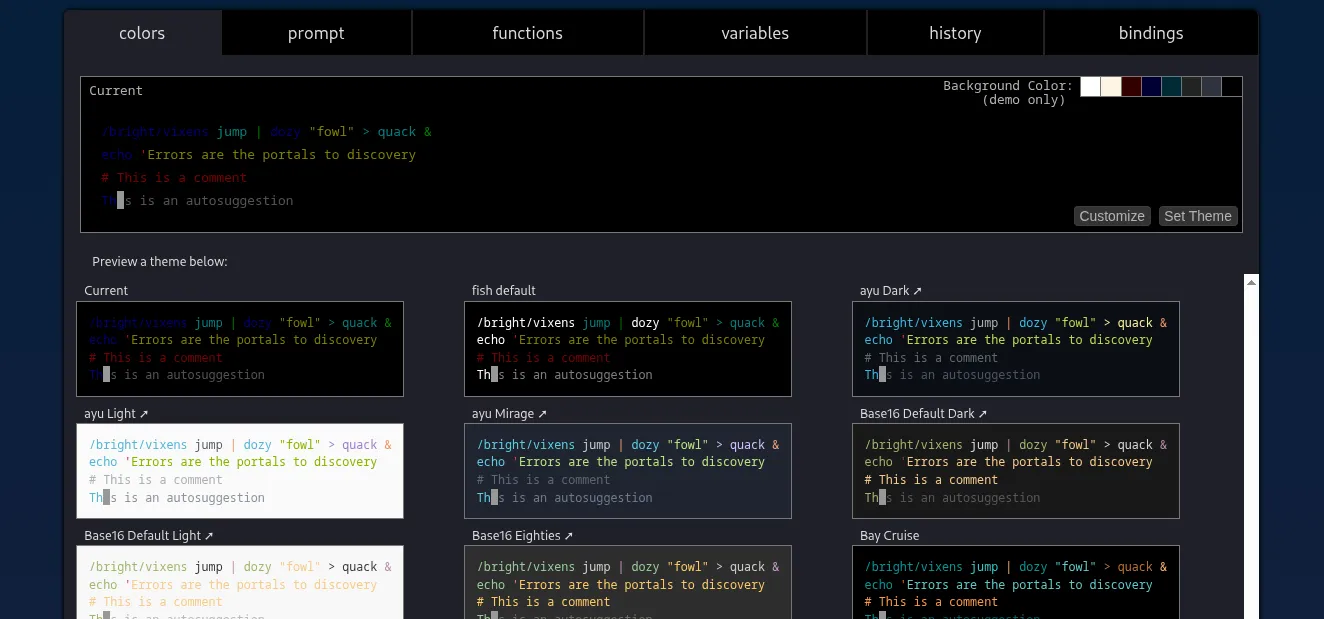
Fish offers a convenient web-based configuration interface. Simply run fish_config to open this interface in your browser where you can easily customize shell colours, prompts, and explore variables and functions.
Bash vs Fish: At a Glance
| Feature | Bash | Fish |
|---|---|---|
| Configuration | Text-based (edit .bashrc) | Web-based configuration interface with option for text-based configuration |
| Auto-suggestions | Not default (requires plugin) | Available by default |
| Syntax Highlighting | Not default (requires plugin) | Available by default |
| Tab Completion | Basic | Smart & descriptive |
| Script Compatibility | Universal (POSIX-compliant) | Not fully POSIX-compliant |
| Key Feature | Advanced scripting & compatibility | User-friendly & interactive |
Summary:
- Choose Bash if you need to write complex scripts, require maximum control, or need universal POSIX compatibility
- Choose Fish if you want smart features and an intuitive shell experience without configuration headache
Looking for an easy way to deploy your projects? Railway can help you reduce infrastructure burden and focus on development.
What Railway Offers
- Easy visual configuration: Configure your project on a visual canvas easily. Railway reads your code and sets the right settings automatically. Thus, you can get started fast!
- Version control: Every Pull Request gets its own preview. You can undo your mistakes and roll back to any previous version when something breaks.
- Built-in monitoring: Access logs, metrics and alerts in one place. Monitor resource usage and set custom alerts.
- Customizable dashboard: Create custom dashboards with metrics from any service.
- Awesome free tier: Railway provides $1 credits per month in the free tier and you’d not need cards to enjoy that.
Free Tier Highlights
- $5 free credits for new users in trial, $20 with my affiliate link.
- $1 in monthly credits on the free plan
- No cards required
Installation & Setup
Debian/Ubuntu:
sudo apt install fishArch Linux:
sudo pacman -S fishFedora:
sudo dnf install fishTo set fish as your login shell:
chsh -s $(which fish)However, using it as a login shell can sometimes cause issues, such as incorrect $PATH values. Some Linux distributions and programs expect Bash as the main shell. Some software applications don’t have good support for fish. Therefore, you should consider these factors before making the switch. Personally, I use fish as my login shell. Occasionally, some minor maintenance is needed. But, I haven’t faced any major problem.
Tips & Tricks: Work Smarter with Fish
If you’re already familiar with fish shell features, these tips will make your shell experience even smarter and speed up your workflow.
1. Enhanced History Search
Besides Ctrl + R, you can press the Up Arrow key to browse through previous commands matching what you’ve currently typed. Just type part of a command and press the Up Arrow key to see only matching commands.
2. Custom Settings with Universal Variables
Use universal variables to permanently save your custom settings. For example, to set a custom project path:
set -U MY_PROJECTS_PATH ~/projectsNow, you can access it from any fish session with echo $MY_PROJECTS_PATH. This will persist even after reboot.
3. Command Execution Timer
Print how long each command took to execute by adding this function to your config.fish:
function postexec_timer --on-event fish_postexec if test $CMD_DURATION -gt 1000 set duration (math $CMD_DURATION / 1000) echo "Duration: {$duration}s" else if test $CMD_DURATION -gt 100 echo "Duration: {$CMD_DURATION}ms" endend4. Automate Common Tasks with Functions
Create functions to automate routine tasks. For example, you can make a function to create multiple directories and navigate into them:
function take --description "Create directory and enter it" mkdir -p $argv cd $argvendUsage: take new_project
5. Use Abbreviations More Effectively
Speed up your daily workflow with abbreviations. Create abbreviations for your most frequently used commands:
abbr --add ins "sudo pacman -S --noconfirm"abbr --add rmv "sudo pacman -Rs"abbr --add up "sudo pacman -Syu --noconfirm"abbr --add gs "git status"abbr --add gp "git push"abbr --add gac "git add . && git commit -m "abbr --add ll "ls -la"Add these to your config.fish to make them permanent and avoid typing full commands each time.
6. Fast Directory Navigation with Directory History
Navigate between folders quickly without using cd multiple times:
- Use
cd -to return to the previous directory - Use
cdhcommand to view directory history
Common Issues & Solutions
1. Bash Scripts Not Working
Issue: Bash scripts raise syntax errors when run in fish
Solution:
# Add a shebang line to scripts#!/bin/bashecho "This script needs bash"
# Or run directly with bashbash script.sh
2. System Commands Not Found
Issue: Some system commands (like systemctl, pacman) don’t work in fish
Solution:
# Check current PATHecho $PATH
# Reset PATH using your system's defaultset -gx PATH /usr/local/bin /usr/bin /bin /usr/local/sbin /usr/sbin /sbin
# Or use fish_add_path to add missing directoriesfish_add_path /missing/directory/path
3. Command History Not Showing Previous Commands from Other Sessions
Issue: After starting fish, command history from other sessions isn’t visible.
Solution:
history mergeUsing fish shell can significantly improve your command-line productivity and make terminal work more enjoyable. It’s especially valuable for developers who want intelligent features like auto-completion and syntax highlighting without complex setup.
Visit the official fish shell website to learn more and explore additional features.
What’s your favourite shell? Share in the comments!
← Back to articles
How was the article?